Cubbytech: November 2016

Monday, 14 November 2016

3 Major and Massive Hidden Tricks Of Android Smartphone You Probably Didnt Know!

android-robot-sign

3 Hidden Tricks Of Android Smartphone You Probably Didnt Know!

7 things you are not aware that your Android smartphone can do

While many people have Android smartphones, but not many users are aware how powerful their devices can be. In this article, we present you a few hacks to make optimal use of your Android smartphone that you may not know.

1. Facial recognition lock screen

Worried about someone hacking your screen lock? Do you keep forgetting your passwords very often?Don’t you worry; you can set a lock on your Android smartphone with facial recognition.
^5A1376E98E9EEE95A62B72292E47BA6029DAC71BA53A6A955E^pimgpsh_fullsize_distr
Just add a photo, set a “Presence Check” for added security and you are ready to go. Take your photo indoors where the light is not too dim or bright for best results.

2. Sync up your Android to a computer/tablet

Whenever you buy an Android smartphone, you will be compelled to set up a Google Gmail account.
Google-Sync-Settings
Do use it because of the endless advantages. Open up a Gmail account and sync everything you can with it. You can sync music, videos, and pictures as well as email and calendar from your computer to your Android phone or even to a cloud. You may also use the sync function over a Wi-Fi network without the use of wires. In other words, every time you get a new phone, all you have to just do is login into your Gmail account and you will find all your documents there.

3. Record your calls with ACR

ACR (All Call Recorder) is a phone call recorder app that let’s you to record phone conversations on your phone. You can easily store the conversation in your smartphone’s memory whenever you make the call or someone calls you.
All-Call-Recorder
You can select the folder from the app’s options, where you want to save the audio file, as well as the format in which you would like to save it. You can even select a cloud-based storage service such as Dropbox or Google Drive, so that they sync with your recordings. However, this function is only available for the paid version of the app.

How to Download Only Audio from a Youtube Video?

Youtube-mp3
There would have been many times when you wanted to download just the audio of a YouTube video, but not finding any way on how to extract just the audio. You had to download the whole video, which took a lot of bandwidth as well as time to download.
There are many ways you could just download the mp3 of a video. You could use IDM, or Down Them All Firefox Plugin etc. But I found a way to download the mp3 without using any third party tool or plugin.
I found a website called listentoyoutube. Just go to it.
On the homepage, you will find a form where you can enter the URL of the video you want to download . Find a Youtube video and copy the URL link into it.
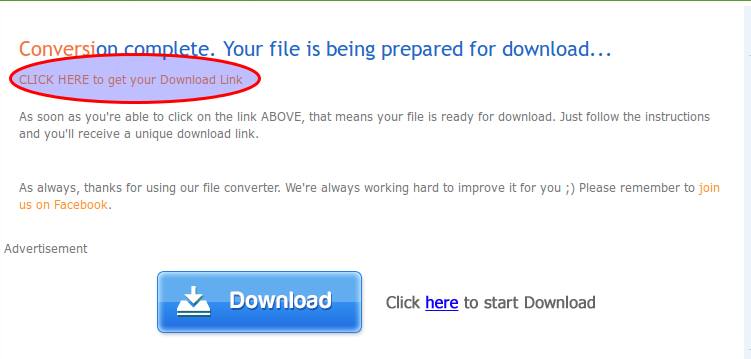
  • It will check the link taking some time
10634258_725712057499244_1659230167_n
  • Click on the highlighted area .
  • Now click on the “Download mp3” button
10621040_725712050832578_1313884621_n
Enjoy!
You can also visit TheYouMp3 for the same.

Tired of IDM? Switch to Flareget !

You must have had at least one moment when IDM would have popped the famous, or shall I say infamous 30 days trial  warning, asking you to pay for pro. Even the cracked versions are not reliable enough and are prone to breaking down, bad. But no more ! Switch to Flareget!
Designed by an alumnus of National Institute of Technology Hamirpur, Syed Adnan Kamili, initially wanted to give linux users a sigh of relief, but over years, he made it available to the users of other operating systems too, including windows.
Flareget boasts of almost every feature that IDM happens to offer.
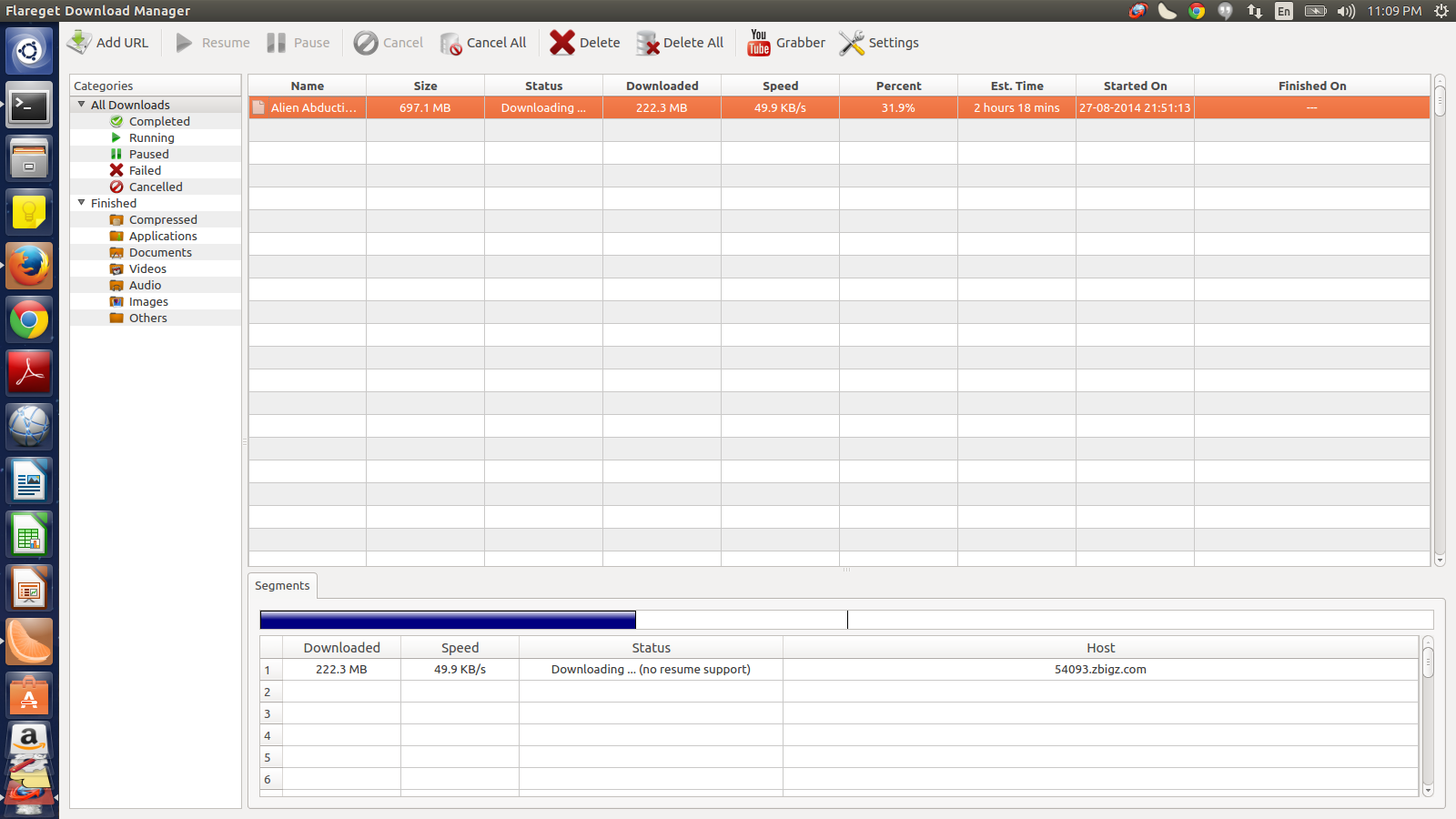
  • Dynamic file segmentation, that increases the speeds of downloads by downloading parts of a file in simultaneously
  • Intelligent File Management, that downloads files of separate formats in separate folders
  • Resume support, so that system crash, network hitch don’t push you to download again.
  • Youtube grabber, smart scheduler, multi protocol support, and many more

Downloading Flareget and Browser Integration:
1) Go to Flareget‘s Official Website and Download Flareget for your operating system.
2) In windows, install the setup just downloaded, in linux, go to your respective package managers and install flareget.
3) After the installation you’d find a ‘Browser Integration Setup’ Popup Window, like this
image1
For Google Chrome:
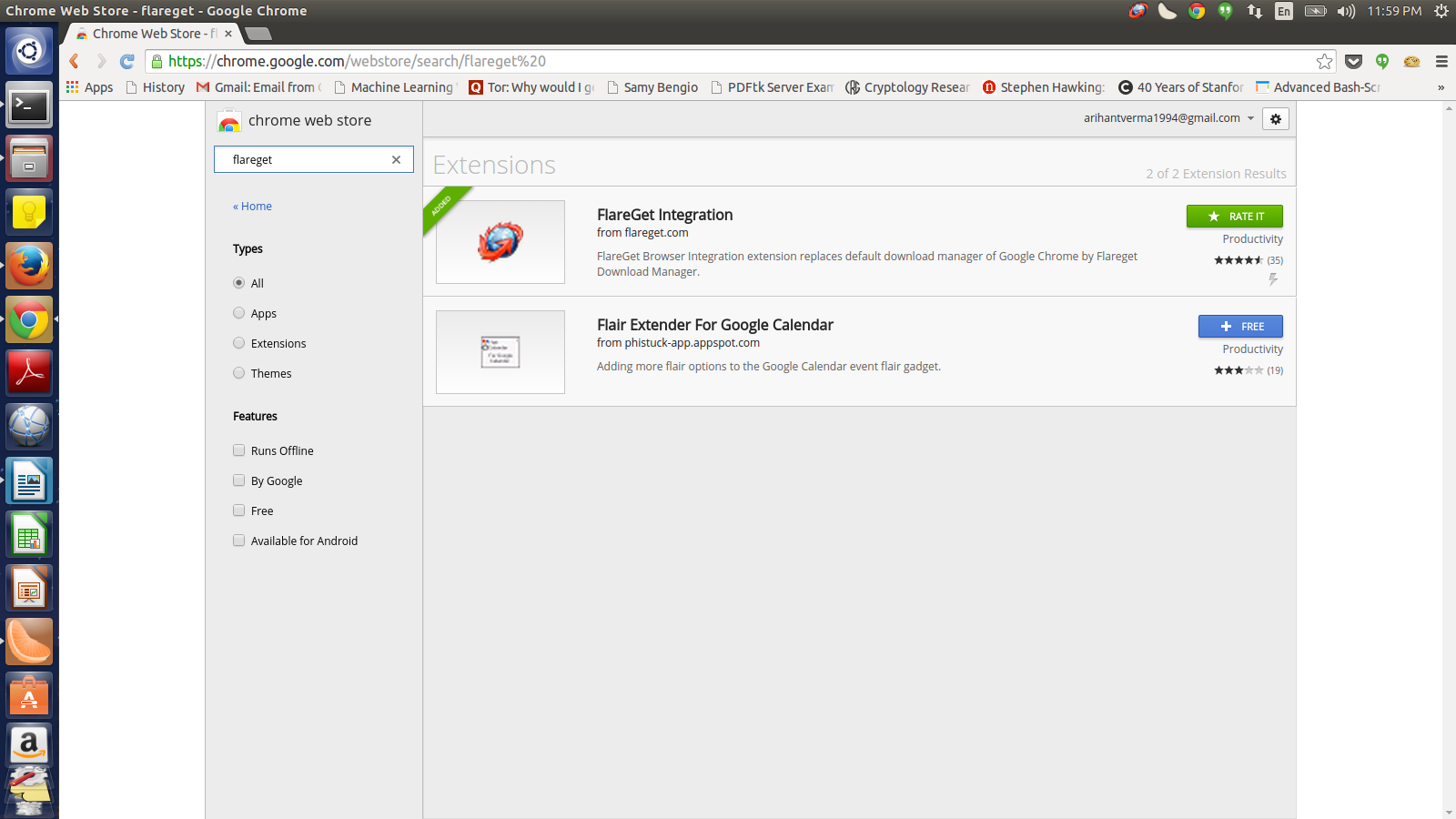
1) Click on the Google Chrome icon. You’ll be directed to Google Web Store Apps. Add the Flareget Integration Extension.
image4
2) Now anytime you download anything, Flareget will take over the download
image3
For Firefox (for same results as IDM) :
1) Go to Add-ons under Tools in Firefox’s Drop Down Menu.
2) Search for Flashgot and add it in your add-ons.
3) Restart Firefox Browser and again go back to Add-ons and then to Flashgot.
4) Go to it’s Preferences.
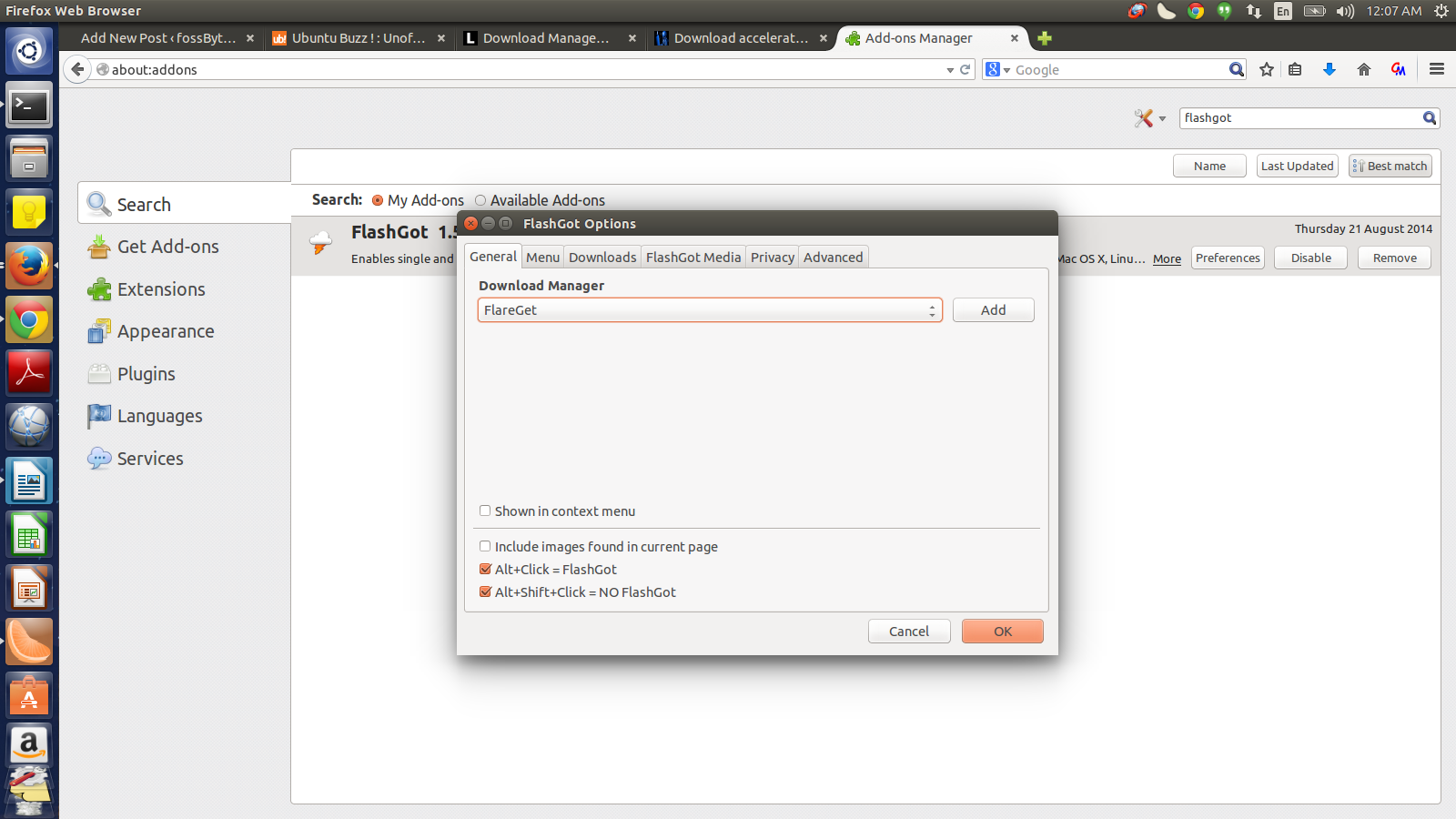
5) In the General as well as in Flashgot Media select Flareget as the Download Manager.
image5
image 6

6) Click OK.
7) Restart the Browser. Go to Youtube for a test drive.
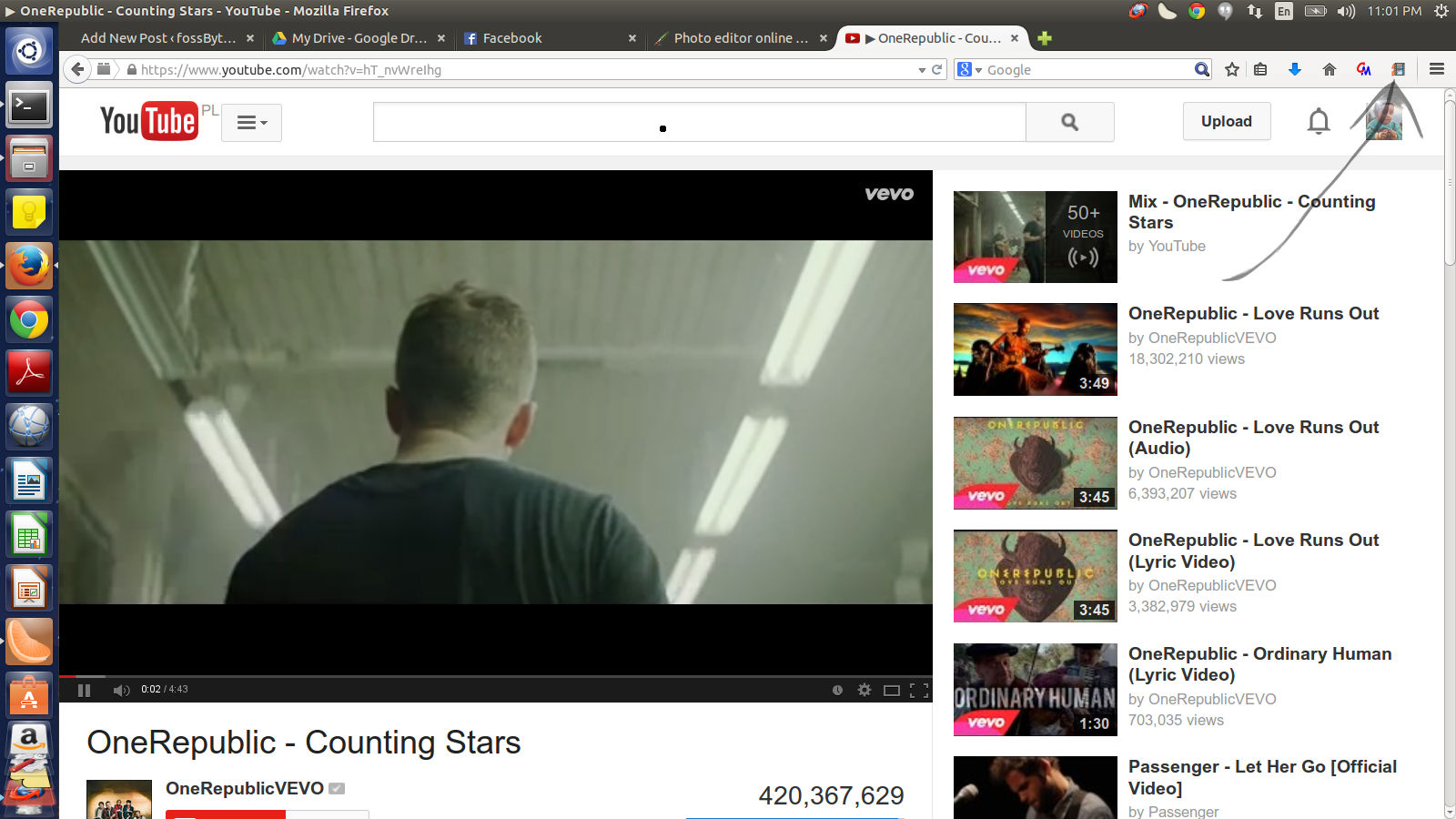
8) Open any video. There, on any of the four corners of your screen(depending on your operating system), you should see a blue colored flag like this :
image2
9) Right click on the blue flag like icon, and select the format and quality of the file(here, a video) you want to download.
10) Voila! It gets downloaded via Flareget Download Manager.

image3
Flareget draws only two simultaneous fragments of a file, above a file of size 25MB. To overcome that you have to go pro. But trust me in most of network speeds, you wouldn’t need that!
Enjoy !

Top 5 Websites to Download Free Softwares

free-software-downloadHave you wasted a lot of time in searching for a free software online? I know sometimes it can get very frustrating . So I have compiled a list of best websites that offer a great deal of free software.
Here it goes –

1. Download.cnet.com :

It is one of the most popular sites online to download freeware , launched in 1996 as a part of CNET, it initially was started as download.com but has changed its domain name to download.cnet.com
It offers content for four major platform i.e  Windows , Mac , ioS and Android. It has over 100,000 freeware , shareware and try-first downloads.The user can also review software and it helps other users to find the best freeware they want .
The only drawback I feel about it is that they changed their own installer to add adware to the software that users wish to download which can sometimes be annoying .

2. Filehippo:

If I need to download something I always go here and it remains my favorite. The websites offers all the major freeware and you can see them listed on the homepage on the popular software category. It has a simple sleek user-friendly interface. Only the ads at the sides can sometimes be annoying. It offers freeware for Windows and Mac. It also runs a tech news blog called TechBeat News. It also provides the outdated and old versions of all the software listed here , so if you want to download an outdated version of a software for some reason, then this is the right place for you to go.

3. Softonic:

It’s like an encyclopedia of free software and desktop programs downloads. It is one of the best-designed website , having its headquarters in Barcelona, Spain. Not only it offers freeware but also news , apps , games , question and answer section etc. If you want to do more than just downloading a software, then you must go here.

4. Sourceforge :

Sourceforge is an open source community that host open source software and its code. It has more than 430,000 projects and hosts over 3.7 million registered users. People come to SourceForge to develop, download, review, and publish open source software. It was the first to offer this service for free to open-source projects .If you are looking for a software that is open source or if you want to play with its code, then this is the place you should go for .

5. Brothersoft :

The list can not be completed without mentioning this website , which was started in 2002 and hosts  over 200,000 free software in different categories. Brothersoft offers more than 200000 free software including drivers, widgets, scripts, browsers, software, utilities, video games, wallpapers and mobile applications. It is worth trying out.

Remove Bad Sector In Pendrive | “Do you want to scan and fix Removable Disk” Error In Windows

bad-sector-in-pen-drive-fix
Bad sectors are an inevitable part of our digital life. Many of us have become used to this kind of glitches that arise every now and then. But, for the novice users, seeing alert messages of disk errors after connecting a pen drive would lead to a situation of panic. Our pen drives and hard drives store a small amount of data in various sectors. There are times when some of these sectors become unusable. Such sectors are known as bad sectors.
In this article, I will mention the steps required to repair bad sectors present in a pen drive or any mass storage media connected to a computer. The method will require the use of a machine running the Windows Operating System. There are two types of bad sectors:Logical (Soft) Bad Sectors: Exist due to software problems. Can be repaired.
Physical (Hard) Bad Sectors: Exist if a physical damage occurs in the pen drive or storage media.So, how to remove bad sectors in a pen drive? Here are some methods which would help you get off the crisis situation:

Remove bad sectors using Windows Explorer

First and the foremost solution to the removal of bad sectors is the Windows Explorer. An easy to use interface would allow you to check your connected storage media for bad sectors and get rid of them.
Note: We’ve used Windows 8.1 to run the disk checking utility. The user interface for Windows 10 is similar but it may differ for Windows 7. Snapshots have been added for your convenience.
Follow these steps:
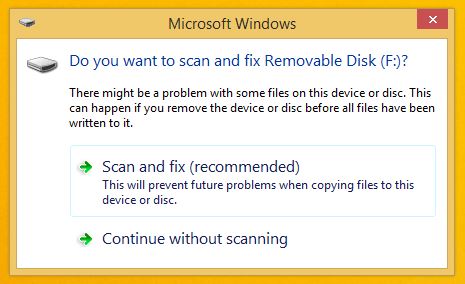
1. Connect your pen drive to your computer. Windows may automatically display a message “Do you want to scan and fix Removable Disk (F:)”.


2. You can also perform the repair process by opening My Computer or This PC.
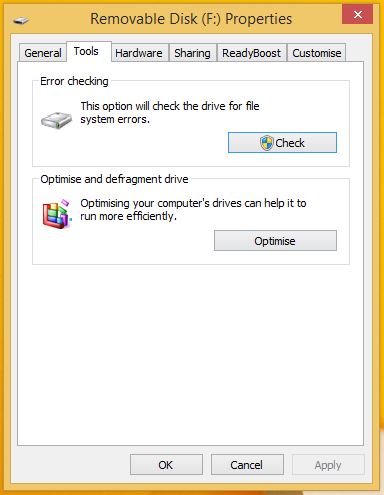
3. Right Click on your pen drive and go toProperties.
4. Click the Tools tab on the top of the properties window.
5. Here, you’ll see the Error-Checking utility. ClickCheck Now and the disk checking process will commence.
Check Now
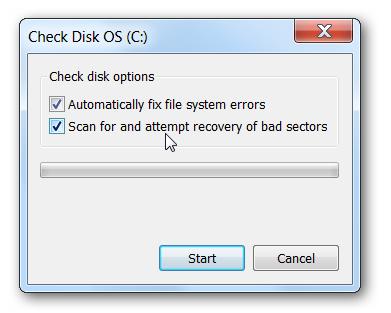
Windows 7 Snapshot after clicking Check Now:repair disk windows 7Note: Don’t forget to close all the applications accessing the pen drive.
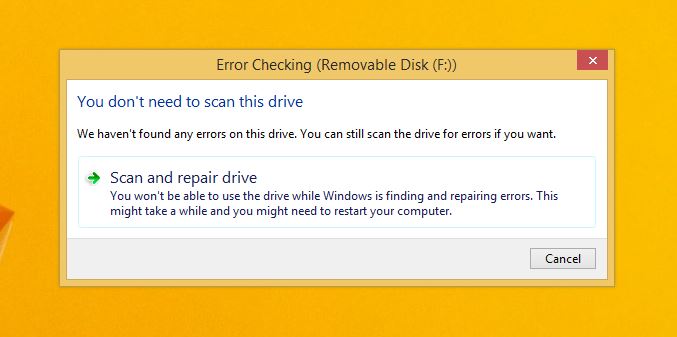
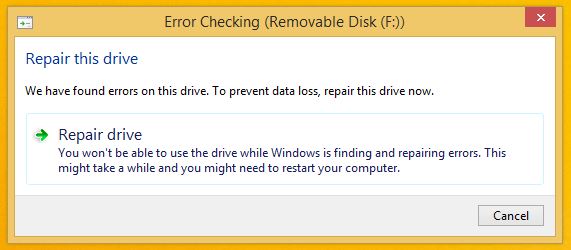
6. The error checking process will take some moments to complete and will notify you of whether any errors exist on your pen drive or not. It might be possible that your pen drive doesn’t have any errors. You can still continue with the repair process if your pen drive isn’t working correctly.
repair pendrive
7. If the disk checking utility finds any errors on your pen drive, it’ll give you two options.Schedule on next restart or Restart. Choose Restart if you want to start the repair process immediately, else, choose the other one. Don’t operate or turn off the computer while the repair is the progress.

Repair Bad Sector using CMD in Windows

If the GUI-based disk checking utility doesn’t work for you then you can head on to the command line interface in Windows. Check Disk is used to perform an error check operation on your connected storage media. To open CMD in administrator mode, Right Click on the Start button and click Command Prompt (Admin).
Use the following command to simply check if any errors exist on your storage media:
chkdsk C:
Here, C is the drive letter assigned to your storage media. You need to write the appropriate drive letter assigned to your pen drive (for example, it’s F in my case). Open My Computer/This PC to see the correct drive letter.
chkdsk
To fix the errors present on the disk, type:
chkdsk /f C:
chkdsk
To find and remove bad sectors:
chkdsk /f /R C:
chkdsk progress
chkdsk
This Check disk utility will now repair any soft bad sector present on your pen drive. Restart your computer after the repair process completes.
Here is a complete list of all the chkdsk optionsprovided by Microsoft.
The above methods will also work for internal drives, SD cards or MicroSD cards (connected using an adapter), and external hard drives.
If you have something to add, tell us in the comments below.
interface for Windows 10 is similar but it may differ for Windows 7. Snapshots have been added for your convenience.
Follow these steps:
1. Connect your pen drive to your computer. Windows may automatically display a message “Do you want to scan and fix Removable Disk (F:)”.
Remove Bad sector
repair bad sector
2. You can also perform the repair process by opening My Computer or This PC.
3. Right Click on your pen drive and go toProperties.
4. Click the Tools tab on the top of the properties window.
5. Here, you’ll see the Error-Checking utility. ClickCheck Now and the disk checking process will commence.
Check Now
Windows 7 Snapshot after clicking Check Now:repair disk windows 7Note: Don’t forget to close all the applications accessing the pen drive.
6. The error checking process will take some moments to complete and will notify you of whether any errors exist on your pen drive or not. It might be possible that your pen drive doesn’t have any errors. You can still continue with the repair process if your pen drive isn’t working correctly.
repair pendrive
7. If the disk checking utility finds any errors on your pen drive, it’ll give you two options.Schedule on next restart or Restart. Choose Restart if you want to start the repair process immediately, else, choose the other one. Don’t operate or turn off the computer while the repair is the progress.

Repair Bad Sector using CMD in Windows

If the GUI-based disk checking utility doesn’t work for you then you can head on to the command line interface in Windows. Check Disk is used to perform an error check operation on your connected storage media. To open CMD in administrator mode, Right Click on the Start button and click Command Prompt (Admin).
Use the following command to simply check if any errors exist on your storage media:
chkdsk C:
Here, C is the drive letter assigned to your storage media. You need to write the appropriate drive letter assigned to your pen drive (for example, it’s F in my case). Open My Computer/This PC to see the correct drive letter.
chkdsk
To fix the errors present on the disk, type:
chkdsk /f C:
chkdsk
To find and remove bad sectors:
chkdsk /f /R C:
chkdsk progress
chkdsk
This Check disk utility will now repair any soft bad sector present on your pen drive. Restart your computer after the repair process completes.
Here is a complete list of all the chkdsk optionsprovided by Microsoft.
The above methods will also work for internal drives, SD cards or MicroSD cards (connected using an adapter), and external hard drives.
If you have something to add, tell us in the comments below.

Ever Heard Of Blue Screen of Death? There Are Black, Red, Green, White, Purple, Gray, Yellow, Brown Also!

screen-of death-guideShort Bytes: You might be familiar with the famous Windows STOP error known as the Blue Screen of Death (BSOD). You’ll be intrigued to know that there are different screens of death in black, red , green, white, purple, yellow, gray, and brown colors that are displayed on various platforms.
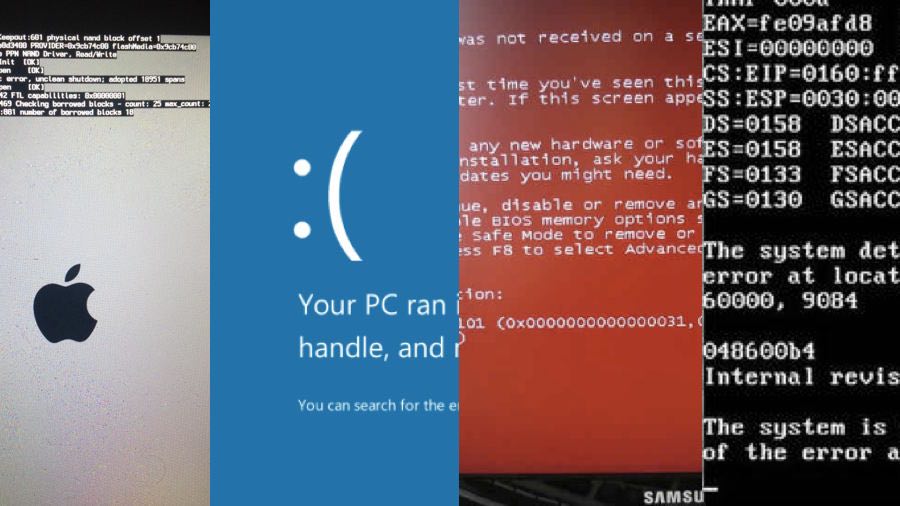
The Windows error screen, known as the Blue Screen of Death, is enough to create a situation of panic for a novice user. But you would be surprised to know that the death could come to your system in different colors, not just the blue. These death screens are an indication to an already existing issue or it may be the silence before the storm. Here are the different types of error screens or screens of death that exist on different platforms:

Blue Screen of Death (BSOD)

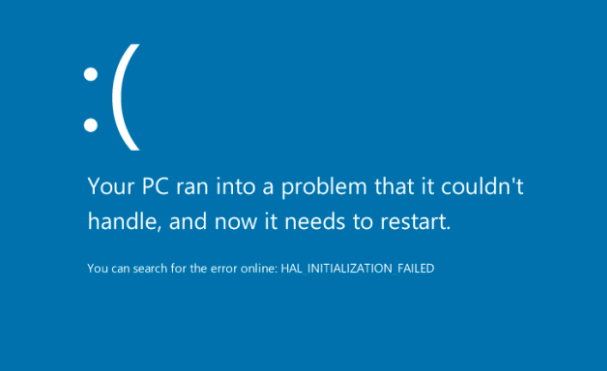
bsod-win10The blue screen of death has gathered most popularity among all the error message screens. This is because it appears more frequently than others. The BSOD occurs when a Windows OS encounters a STOP error or fatal system error ( a condition wherein an operating system fails to perform its normal operations efficiently) leading to a system crash. This is caused due to corrupt drivers, faulty hardware components, improper power supply, or when the hardware components have to work beyond their designed capacity. To know more about the blue screen of death, read the following article: What is the Blue Screen of Death in Windows – The Complete Guide

Black Screen of Death (BkSOD)

black-screen-of-death
Obviously, it can’t be BSOD, that would lead to a confusion. Black Screen of Death is not something new to fall upon our ears. It has been in existence since the time people used to play games of Windows 3.x. It showed up when a critical system error occurred. Ed Brown, a Coca-Cola IT department employee, has been originally credited for the existence of the name Black Screen of Death which he gave in the year 1991.
Newer Windows operating systems like Windows 7, 8, 10 also display the black screen of death when they fail to load the MBR during the boot. This occurs when some important DLL file goes missing or, in case, you’ve compressed your drive and the OS can’t uncompress it quickly.
Apple’s iPhone 5S along with some Android devices also suffer the black death sometimes.

Red Screen Of Death (RSOD)

red-screen-of-death-windows
The Red screen of death is visible when your Windows system has some issues with the graphics card installed. This screen of death is known to have appeared on Windows 98 and Windows Vista. However, it may not prevent your system from normal booting since it is concerned with graphics part only.
Red screens are also displayed on Sony PlayStation gaming consoles when a fatal error occurs. Also, the Amazon Kindle Fire tablet is known to display a red error screen when it gets bricked.

Green Screen of Death (GSOD):

green-screen-of-death-gsod
It is not a Microsoft Windows error screen but it does concern Microsoft. The GSOD appeared on Xbox One following the update failures leading to freezing of the gaming console. Sometimes, it showed the green screen and then jumped to a black screen. Hard drive errors that occurred while saving the update data were the reason behind the GSOD. The Xbox One users had to hard reset their consoles in order to get the things right.
The green screen of death is visible on the Nintendo Entertainment System when it fails to start. Also, on the TiVo digital video recorder saying “a severe error has occurred”. The cause of the error screen could be related to issues with the hard drive.

Purple Screen of Death (PSOD)

PSOD
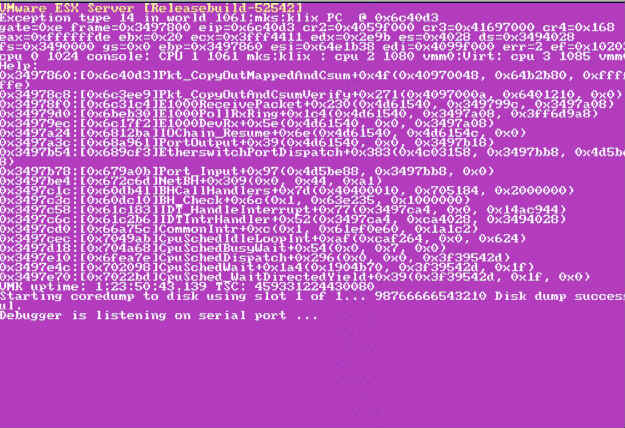
There is a purple death also, known as the Purple Screen of Death. Displaying an error code, it appears on the hypervisor VMWare ESX/ESXi Server in the condition of a fatal kernel error. Another victim of the purple death was the Nintendo DS. A purple colored screen popped up on the display when a person using the Pictochat app deliberately removed the cartridge. However, it was considered more of a developer testing issue than an actual error.

Gray Screen of Death (GSOD)

microsoft-surface-rt
The color of the screen on the original Microsoft Surface running Windows 8.1 RT turns complete gray, barring the device to perform properly. Known as Gray Screen of Death, it was noticed after the May 2015 Windows RT update. A permanent solution was to roll back to factory settings and then disable the updates. A user reported that pressing Windows + Up Volume key would open the narrator and magically vanish the gray screen.

White Screen of Death (WSOD)

iphone-5
The white screen of death with a black Apple logo started to show up on white iPhone 5 and its successors, along with the 5th gen white iPod touch after the iOS 7 update. It restarts your device and you won’t able to perform any action after that. Apple did go fancy in bringing the death screen also. “A white iPhone face produces a white boot up screen with a black Apple logo, while a device with a black face produces a black screen with a white Apple logo,” Mashable wrote.
Another instance of the white screen of death bug was spotted. A Gamer Center bug triggered the display of a completely white screen. In April this year, Forbes reported via AppleInsider, that the bug would be fixed in the iOS 9.3.2 update.

Yellow Screen of Death (YSOD)

firefox-yellow-screen
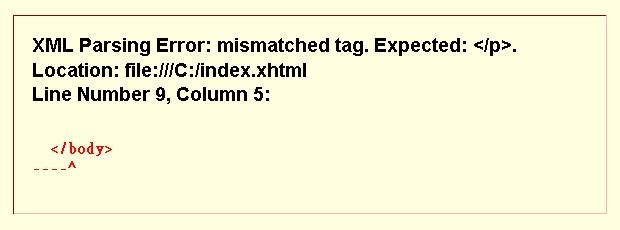
The thing that should be afraid of the yellow death is Mozilla firefox. A yellow screen of death appears when the XML parser (which converts the XML code into machine readable format) fails to process an XML document causing a parsing error in Firefox. This happens when the XML document is not well-formed.
Also, when a web application built using ASP.NET encounters an error or it crashes, a yellow screen of death is visible.

Brown Screen of Death

Just like the red screen of death, the brown screen of death also concerns with the graphics hardware and software. It appears if your machine is running an outdated or corrupt graphics drivers or a faulty graphics card and you’re trying to play a game. Overclocking your CPU and GPU to get better gaming performance may also invite the brown screen of death. Some users havereported having seen the brown screen of death while playing games using newer graphics cards.
We hope that you enjoyed reading this complete guide on different kinds of screens of death. Have something else to add? Share with us via comments section below.